
- Tags: backup, restore, migrate, database, site transfer
- Requires at least: 5.0
- Tested up to: 6.8
- Requires PHP: 7.2
- Stable tag: 1.1.2
- License: GPLv3 or later
- License URI: https://www.gnu.org/licenses/gpl-3.0.html
Create complete site snapshots with one-click restore and migration tools. Protect database, themes, plugins, and media files.
Description
Create complete site snapshots including database, themes, plugins, and media files – then restore everything with one click. No cloud accounts or complex configuration required.
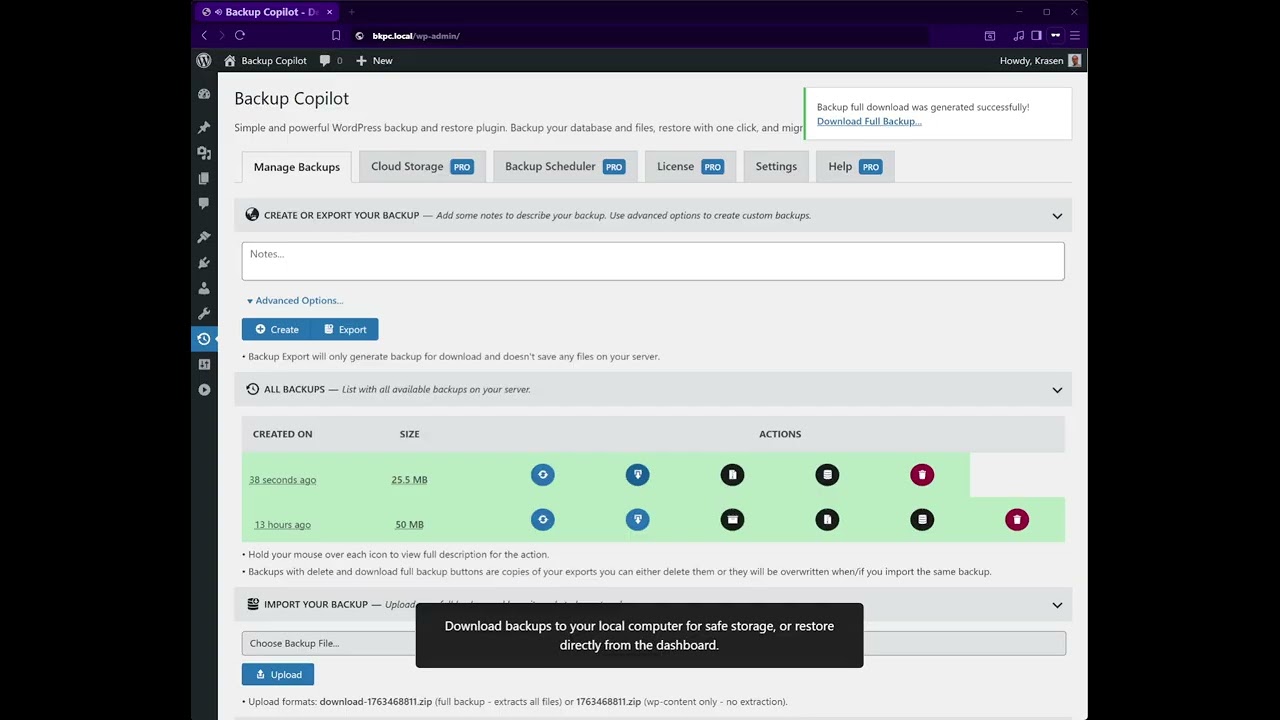
Click the image above to watch the full demo on YouTube
Key Features
- One-click snapshot creation
- One-click restore functionality
- Export and import for site migration
- Full database dumps
- File system backup
- No cloud storage required
- Manual and scheduled options
How It Works
- Install and activate
- Click Create to save a snapshot
- Add optional notes to identify save points
- Click Restore to roll back your site
- Use Export to download for migration
Works immediately with sensible defaults that protect your entire installation.
Use Cases
- Create safety nets before updates
- Roll back after failed changes
- Migrate sites between hosts
- Transfer from localhost to production
- Recover from hacking incidents
- Protect WooCommerce store data
Installation
From Dashboard
- Go to Plugins > Add New
- Search for “Backup Copilot”
- Click Install Now, then Activate
Manual Installation
- Download the plugin ZIP file
- Upload to /wp-content/plugins/
- Activate from Plugins menu
After Activation
- Navigate to Backup Copilot in admin menu
- Verify system checks show [OK] status
- Click Create to make your first snapshot
- Add optional notes to identify this point
- Test restore process with a test snapshot
Frequently Asked Questions
How do I create a site snapshot?
Click Backup Copilot in your admin menu, then click the Create button. The plugin saves your database and all files. No configuration needed.
Can I restore my site after a crash?
Yes, if you created a snapshot before the crash. Go to Manage Backups, find the restore point, and click Restore.
What files are included?
Snapshots include your database (MySQL), all themes, all plugins, media library (uploads folder), must-use plugins, and optionally .htaccess and wp-config.php for migration.
How do I migrate to a new host?
On your old site: Click Export to download. On new installation: Install this plugin, click Import, upload the file, and click Restore.
Does this include the database?
Yes, complete MySQL database dumps include all tables, posts, pages, custom post types, user accounts, plugin settings, and theme options.
Where are snapshots stored?
Snapshots are stored in a hidden .bkps directory in your root folder. Enable “Show hidden files” in your FTP client to see it. Protected with .htaccess and index.php security files.
Can I schedule automatic snapshots?
Automatic scheduling requires the Pro version. Set hourly, daily, weekly, or monthly schedules with automatic cloud storage sync.
Does this work with WooCommerce?
Yes, all WooCommerce data including products, orders, customers, and settings are included in database snapshots.
Will this slow down my site?
No, snapshot creation happens in the background. Your site remains fully accessible during the process.
Does this support Multisite?
Yes, Super Admins can save entire networks, Site Admins can save individual sites with site-specific database tables and files.
What’s the maximum snapshot size?
The free version supports snapshots up to 500MB (optimal for shared hosting). The Pro version removes this limit with resumable uploads.
Can I use this on localhost?
Yes, works on localhost installations. Create snapshots locally, then export and import them to your production server for easy migration.
Screenshots


Changelog
1.1.2
- Fix – Reverted incorrect multisite path logic
- Fix – Removed PRO-only detection code
- Fix – Restore now works correctly for all types
1.1.1
- New – Network Admin menu for Multisite
- New – Site column in table showing origin
- New – Read-only mode for main site viewing subsites
- New – Backward compatibility with automatic migration
- Update – Improved Multisite filtering
- Update – Sorting shows newest first
- Fix – Main site can view all subsites
- Fix – Subsite isolation properly filtered
- Fix – Delete All respects site boundaries
- Fix – Uploaded files restore correctly
- Fix – Restore failure when missing database files
1.1.0
- New – Real-time progress tracking
- New – Secure download handler with nonce verification
- New – Validation system checks integrity
- New – UUID generation for unique identification
- New – Progress polling shows step-by-step creation
- New – Pro features comparison table
- New – Enhanced settings page
- New – Loading bar visual feedback
- New – Toast notification system
- New – Modal system for confirmations
- New – Compact mode toggle for admin menu
- Update – Complete codebase refactoring
- Update – Modular JavaScript interface
- Update – SCSS-based styling
- Update – Enhanced security with nonce verification
- Update – Better error handling
- Security – Added security class with directory protection
- Security – Downloads through authenticated AJAX handler
- Security – File path validation for downloads
- Security – Nonce verification on all AJAX endpoints
- Security – Capability checks before operations
1.0.0
- Initial release
- One-click creation
- One-click restore
- Site migration with export/import
- Database dumps
- File system backup
- Advanced options
- Management interface
- Real-time progress tracking
Upgrade Notice
1.1.2
Critical hotfix for restore process. Recommended immediate upgrade for all users.
1.1.1
Major Multisite enhancements with improved isolation, subsite support, and critical restore fixes. Highly recommended upgrade.
1.1.0
Major release with complete rebuild, real-time progress tracking, enhanced security, and improved user interface. Recommended upgrade for all users.
1.0.0
Initial release with simple, reliable snapshot and restore functionality.
Backup Copilot for WordPress - Simple Backup, Restore & Site Migration Plugin
Contributors: krasenslavov, developry
Donate Link: https://krasenslavov.com/hire-krasen/
Tags: backup, wordpress backup, restore, migrate, database backup
Requires at least: 5.0
Tested up to: 6.8
Requires PHP: 7.2
Stable tag: 1.1.2
License: GPLv3 or later
License URI: https://www.gnu.org/licenses/gpl-3.0.html
WordPress backup plugin with one-click backup, restore & migration. Simple database backup, file backup, site transfer solution for WordPress websites.
Description
Create complete WordPress backups with Backup Copilot - the simple backup and restore plugin that protects your WordPress site without complexity.
Stop worrying about lost data or failed updates. Backup Copilot creates complete WordPress backup snapshots including your database, themes, plugins, and media files - then lets you restore everything with one click. No cloud accounts required, no complex configuration, just simple WordPress backup protection that works.
Whether you're updating WordPress, migrating to a new host, or need a safety net before making changes, Backup Copilot provides reliable WordPress backup and restore functionality designed for users of all skill levels.
Why Choose Backup Copilot?
-
One-Click Backup - Create complete WordPress backups in seconds
-
One-Click Restore - Roll back your entire site instantly
-
Site Migration - Export and import backups between WordPress installations
-
Database Backup - Full MySQL database dumps with all tables
-
File Backup - Themes, plugins, media library, and WordPress core files
-
No Cloud Required - Store backups directly on your server (cloud optional in Pro)
How WordPress Backup Works
-
Install and activate Backup Copilot on your WordPress site
-
Click Create Backup to save a complete WordPress backup snapshot
-
Add optional notes to identify your backup points
-
Click Restore anytime to roll back your WordPress site
-
Use Export to download backups for WordPress migration to new hosts
No technical knowledge required - works immediately with sensible defaults that protect your entire WordPress installation.
Perfect For
-
WordPress Site Owners who need reliable backup protection
-
Web Developers performing WordPress updates and maintenance
-
WordPress Agencies managing multiple client websites
-
Freelancers migrating WordPress sites between hosts
-
Bloggers protecting content before major changes
-
E-commerce Sites running WooCommerce with critical data
WordPress Backup Features
Complete WordPress Backup
Create full WordPress backups including your MySQL database, wp-content folder (themes, plugins, uploads), and WordPress configuration files. Choose what to backup with granular control over each component.
WordPress Restore Tool
Restore your WordPress site to any previous backup point with one click. Roll back after failed updates, restore deleted content, or recover from hacking incidents. The WordPress restore process handles database and files automatically.
WordPress Site Migration
Export complete WordPress backups to migrate sites between hosts, from localhost to production, or when changing domains. Import backups on new WordPress installations and restore everything exactly as it was.
WordPress Database Backup
Create MySQL database dumps with all WordPress tables, custom post types, WooCommerce data, and plugin settings. Database backups include proper SQL formatting for reliable WordPress restoration.
WordPress File Backup
Backup your entire wp-content directory including themes, plugins, uploads (media library), mu-plugins, and cache files. Select individual components or backup everything at once.
Backup Management
View all WordPress backups in a simple table showing creation date, backup size, and included components. Add notes to identify backups, download individual files (.sql or .zip), or delete old backups to save server space.
Usage
Once the WordPress backup plugin is installed and activated:
-
Navigate to Backup Copilot in the WordPress admin menu
-
Click Create Backup to create your first WordPress backup
-
View all backups in the Manage Backups table
-
Click Restore to roll back WordPress to any backup point
Here are the steps to use Backup Copilot:
-
Create Backup - Saves WordPress backup on your server for quick restore
-
Export Backup - Downloads complete WordPress backup to your computer
-
Import Backup - Upload WordPress backup file from another site
-
Restore Backup - Roll back WordPress site to any backup point
-
Download Files - Get individual components (database .sql, files .zip)
-
Delete Backup - Remove old WordPress backups to save server space
Note: WordPress backups are stored in a hidden .bkps directory. The plugin does not automatically upload to cloud storage - this is a Pro feature.
WordPress Backup Options
Choose what to backup:
-
Edit any backup and select Advanced Options
-
Choose components: Database, WP-Content, Media Library, Themes, Plugins
-
Include configuration files: .htaccess, wp-config.php (export only)
-
Enable Find & Replace URLs for WordPress migration (Pro)
WordPress Restore Process:
-
Go to Backup Copilot > Manage Backups
-
Find the backup point you want to restore
-
Click the Restore button
-
Confirm the restoration
-
WordPress automatically restores database and files
WordPress Site Migration:
-
On old site: Click Export Backup to download
-
On new WordPress installation: Install Backup Copilot
-
Click Import Backup and upload the file
-
Click Restore to complete WordPress migration
Features & Limitations
The Backup Copilot WordPress backup plugin allows you to:
-
Create complete WordPress backups including database and all files
-
Restore WordPress site to any previous backup point with one click
-
Export WordPress backups for site migration to new hosts or domains
-
Import WordPress backups from other installations
-
Download individual backup components (database .sql, files .zip)
-
Track WordPress backup progress in real-time
-
Add notes to identify different WordPress backup points
-
View backup size and creation date
-
Customize WordPress backup contents with advanced options
-
Backup WooCommerce data, custom post types, and all WordPress content
WordPress Backup Components
Database Backup
Complete MySQL database dump with all WordPress tables, posts, pages, custom post types, WooCommerce products, user data, plugin settings, and theme options. The database backup uses proper SQL formatting for reliable restoration.
File Backup
Full wp-content directory backup including all themes (active and inactive), all plugins, complete media library (uploads folder), must-use plugins (mu-plugins), and cache files. Choose individual components or backup everything.
WordPress Configuration
Export WordPress configuration files including .htaccess (server rules) and wp-config.php (WordPress settings). These files are included only in export backups for WordPress site migration.
Backup Management
Simple interface showing all WordPress backups with creation date, size, and components. Add custom notes, download individual files, or delete old backups. Real-time progress tracking during WordPress backup creation.
Known Limitations
Free version limitations:
-
Backup Size - Maximum 500MB per WordPress backup (optimal for shared hosting)
-
Storage - Server only (no automatic cloud sync to Dropbox, Google Drive, etc.)
-
Scheduling - Manual WordPress backups only (no automated daily/weekly backups)
-
Retention - Manual deletion only (no automatic cleanup of old backups)
-
Notifications - No email alerts for WordPress backup completion
-
Emergency Features - No one-click emergency rollback
Detailed Documentation
Find step-by-step setup guides, video tutorials, WordPress backup best practices, and migration instructions on the Backup Copilot Documentation page.
Backup Copilot Pro
If you're using the free WordPress backup plugin from WordPress.org and want Pro features, you can purchase the premium version on the Backup Copilot Pro website.
Here are some features included in the Pro version:
-
Cloud Storage Integration - Automatic WordPress backup sync to Dropbox, Google Drive, OneDrive
-
Automated Scheduling - Hourly, daily, weekly, monthly WordPress backup schedules
-
Smart Retention Policies - Age-based, count-based, and size-based auto-delete rules
-
Email Notifications - WordPress backup success and failure alerts with detailed reports
-
Unlimited Backup Size - Handle large WordPress sites of any size with resumable uploads
-
Pre-Restore Validation - Verify WordPress backup integrity before restoration
-
Emergency Rollback - One-click WordPress disaster recovery
-
Find & Replace URLs - Built-in WordPress migration tool for domain changes
-
Full WordPress Multisite Support - Network-wide and per-site backups
-
REST API - Automate WordPress backups via API with webhook support
-
Priority Support - Direct email and live chat for WordPress backup assistance
-
Regular Updates - Early access to new WordPress backup features and improvements
Frequently Asked Questions
Visit the Support Forum to share your questions or requests.
We usually respond to tickets within a few days.
Feature requests are added to our wish list and considered for future updates.
How do I backup my WordPress site?
Click Backup Copilot in your WordPress admin menu, then click the Create Backup button. The plugin creates a complete WordPress backup including your database and all files. No configuration needed - works immediately.
What's the best WordPress backup plugin?
Backup Copilot provides simple, reliable WordPress backup and restore functionality without complexity. One-click backups, one-click restore, and easy WordPress site migration make it ideal for users who want protection without learning complex backup systems.
How to restore WordPress from backup?
Go to Backup Copilot > Manage Backups, find the backup point you want to restore, and click the Restore button. Backup Copilot automatically restores your WordPress database and all files to that backup point.
Does this backup WordPress database?
Yes, Backup Copilot creates complete MySQL database dumps including all WordPress tables, posts, pages, custom post types, WooCommerce data, user accounts, plugin settings, and theme options.
How to migrate WordPress site to new host?
On your old site: Click Export Backup to download. Install WordPress on new host, install Backup Copilot, click Import Backup, upload the file, and click Restore. Your WordPress site is now migrated completely.
What WordPress files are backed up?
The WordPress backup includes your database (MySQL), all themes, all plugins, media library (uploads folder), must-use plugins, cache files, and optionally .htaccess and wp-config.php for migration.
How to schedule automatic WordPress backups?
Automatic WordPress backup scheduling requires Backup Copilot Pro. Set hourly, daily, weekly, or monthly backup schedules with automatic cloud storage sync.
Can I backup WordPress to cloud storage?
Cloud storage (Dropbox, Google Drive, OneDrive) is available in Backup Copilot Pro. The free version stores WordPress backups on your server only.
Where are WordPress backups stored?
WordPress backups are stored in a hidden .bkps directory in your WordPress root folder. Enable "Show hidden files" in your FTP client to see it. Backups are protected with .htaccess and index.php security files.
How to backup WooCommerce site?
Yes, Backup Copilot backs up all WooCommerce data including products, orders, customers, and settings. WooCommerce data is stored in your WordPress database and is included in every backup.
My WordPress site crashed. Can this help?
If you created a WordPress backup before the crash, simply restore the most recent backup to recover your site. This is why creating backups before WordPress updates is essential.
Does this work with WordPress Multisite?
Yes, Backup Copilot supports WordPress Multisite. Super Admins can backup entire networks, Site Admins can backup individual sites with site-specific database tables and files.
How large can WordPress backups be?
The free version supports WordPress backups up to 500MB (optimal for shared hosting). Backup Copilot Pro removes this limit with resumable uploads for large WordPress sites.
Will backups slow down my WordPress site?
No, WordPress backup creation happens in the background. Your site remains fully accessible during the backup process. Backups don't affect your site's performance or speed.
How do I backup WordPress before updating?
Before updating WordPress core, themes, or plugins, go to Backup Copilot and click Create Backup. If the update causes issues, restore the backup to roll back your WordPress site.
Can I backup WordPress localhost site?
Yes, Backup Copilot works on localhost WordPress installations. Create backups locally, then export and import them to your production server for easy WordPress site migration.
Screenshots
Below are screenshots showing how to access and use the WordPress backup plugin.
- Backup Copilot main dashboard
- Create WordPress backup interface
- Manage backups table view
- WordPress backup advanced options
- Restore WordPress backup confirmation
- WordPress backup progress tracking
Installation
Installing the WordPress backup plugin is straightforward. Contact support if you encounter any issues.
Requirements:
-
WordPress 5.0 or higher
-
PHP 7.2 or higher
-
MySQL database access
-
Sufficient server disk space for backups
= Installation from WordPress =
-
Go to Plugins > Add New
-
Search for Backup Copilot
-
Click Install Now then Activate
-
Navigate to Backup Copilot in the admin menu
= Manual Installation =
-
Download the WordPress backup plugin ZIP file
-
Upload the
backup-copilotfolder to/wp-content/plugins/ -
Go to Plugins in WordPress admin
-
Activate Backup Copilot
-
Navigate to Backup Copilot in the admin menu
= After Activation =
-
Click Backup Copilot in the WordPress admin menu
-
Verify all system checks show [OK] status
-
Click Create Backup to create your first WordPress backup
-
Add optional notes to identify this backup point
-
Review the backup in the All Backups table
-
Test the restore process with a test WordPress backup
Quick Start:
-
Navigate to Backup Copilot
-
Click Create Backup
-
Wait for WordPress backup to complete
-
Your site is now protected!
Changelog
= 1.1.2 =
Critical Hotfix - WordPress Restore Process
-
Fixed - Reverted incorrect multisite path logic that broke WordPress restore process
-
Fixed - Removed PRO-only full backup detection code from free WordPress backup plugin
-
Fixed - WordPress restore now works correctly for all backup types (database + files)
= 1.1.1 =
WordPress Multisite Enhancements & Critical Fixes
-
New - Network Admin menu for WordPress Multisite installations
-
New - Site column in backup table showing which WordPress site each backup belongs to
-
New - Read-only mode for main site viewing subsite backups
-
New - Backward compatibility for existing WordPress backups with automatic migration
-
New - Centralized WordPress multisite metadata storage
-
Improved - WordPress Multisite backup filtering now properly isolates backups per site
-
Improved - Backup sorting shows newest WordPress backups first
-
Improved - Delete All button respects site isolation in WordPress Multisite
-
Improved - Upload process auto-extracts SQL files from WordPress backup ZIP archives
-
Improved - WordPress restore handles content-only backups gracefully
-
Fixed - Main site can view all WordPress subsites' backups
-
Fixed - WordPress subsite backups properly filtered and isolated
-
Fixed - Delete All no longer deletes other WordPress sites' backups
-
Fixed - Uploaded WordPress backup files restore correctly with SQL extraction
-
Fixed - WordPress restore failure when backups missing database files
-
Fixed - Action buttons disabled for other WordPress sites' backups
-
Security - Read-only access prevents main site from modifying WordPress subsite backups
-
Security - Proper capability checks for WordPress network admin access
-
Security - Path validation and nonce verification on all WordPress backup operations
= 1.1.0 =
Major Release - Complete WordPress Backup Plugin Rebuild
-
New - Real-time WordPress backup progress tracking with notifications
-
New - Secure WordPress backup download handler with nonce verification
-
New - WordPress restore validation system checks backup integrity
-
New - WordPress backup UUID generation for unique identification
-
New - Progress polling shows step-by-step WordPress backup creation
-
New - Pro features comparison table
-
New - Enhanced settings page for WordPress backup plugin
-
New - Loading bar visual feedback for WordPress backup operations
-
New - Toast notification system for WordPress backup success/error messages
-
New - Modal system for WordPress restore confirmations
-
New - Compact mode toggle for WordPress admin menu
-
Improved - Complete WordPress backup codebase refactoring
-
Improved - Modular JavaScript for WordPress backup interface
-
Improved - SCSS-based styling for WordPress backup plugin
-
Improved - Enhanced WordPress backup security with nonce verification
-
Improved - Better error handling for WordPress backup failures
-
Improved - WordPress backup progress shows each step clearly
-
Improved - Secure WordPress backup file downloads via AJAX
-
Improved - WordPress backup table displays all backup types
-
Security - Added WordPress backup security class with directory protection
-
Security - WordPress backup downloads through authenticated AJAX handler
-
Security - File path validation for WordPress backup downloads
-
Security - Nonce verification on all WordPress backup AJAX endpoints
-
Security - Capability checks before WordPress backup operations
= 1.0.0 =
-
New - Initial WordPress backup plugin release
-
New - One-click WordPress backup creation
-
New - One-click WordPress restore functionality
-
New - WordPress site migration with export/import
-
New - WordPress database backup with MySQL dumps
-
New - WordPress file backup (themes, plugins, media)
-
New - Advanced WordPress backup options
-
New - WordPress backup management interface
-
New - Real-time WordPress backup progress tracking
Full changelog available at [Backup Copilot](https://backupcopilotplugin.com/?utm_source=bkpc&utm_medium=free_plugin&utm_campaign=readme_txt)
Upgrade Notice
= 1.1.2 =
Critical hotfix for WordPress restore process. Recommended immediate upgrade for all users.
= 1.1.1 =
Major WordPress Multisite enhancements with improved backup isolation, subsite support, and critical restore fixes. Highly recommended upgrade.
= 1.1.0 =
Major release with complete WordPress backup plugin rebuild, real-time progress tracking, enhanced security, and improved user interface. Recommended upgrade for all users.
= 1.0.0 =
Initial release of simple, reliable WordPress backup and restore plugin.
Upgrade to Backup Copilot Pro for cloud storage, automated WordPress backup scheduling, email notifications, and priority support!
